---
title: How to update the NUC host
description: Some NUC hosts require a manual update instead of using the host/rck update process.The steps provided here explain the manual update process.
---
[Skip to content](https://help.myskycoach.com/manual-nuc-update#main-content)
[](https://myskycoach.com)
Open main navigation
Close main navigation
How can we help you?
- There are no suggestions because the search field is empty.
1. [Help Center](https://help.myskycoach.com/?hsLang=en)
2. [Support](https://help.myskycoach.com/support?hsLang=en)
3. [Common Support Questions](https://help.myskycoach.com/support?hsLang=en#common-support-questions)
# How to update the NUC host
## Some NUC hosts require a manual update instead of using the host/rck update process.The steps provided here explain the manual update process.
#### NUC Host
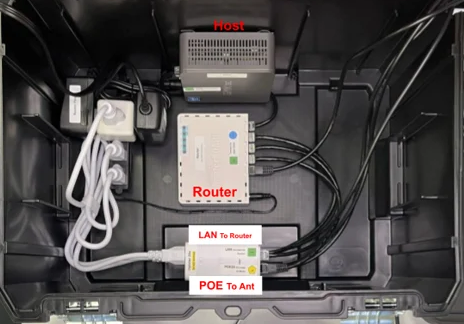
A NUC host is the gray computer in your host box. In the picture below it is labeled as host. This computer is the server that houses the video and data for the events.
#### Prerequisites
Before beginning the update process, ensure access to:
- The SkyCoach Host toolbox that has the NUC host inside of it
- Either a monitor OR RCK to serve as a screen for the host
- HDMI cable to connect NUC to monitor
- USB mouse and keyboard to run the install process on the NUC
- Internet connection via Ethernet for the NUC or a USB drive with the install files
#### Connect to the NUC
Access the NUC's screen using one of the following connection methods:
### **Direct Monitor Connection**
- Connect a monitor to the NUC using an HDMI cable
- Plug in a USB mouse and keyboard to the NUC
- Power on the NUC
### **RCK Connection**
- Connect the HDMI output from the NUC to the RCK's HDMI input
- Plug in a USB mouse and keyboard to the NUC
- Power on the RCK and then the NUC (order does matter; if you turn them on and do not see the NUC interface on the RCK screen, power the NUC off and back on again)
- On the RCK, open the SkyCoach app
- Tap "Viewfinder Only"
- The NUC's screen will now display on the RCK
#### Open Terminal Window
Once connected to the NUC:
- Press **Ctrl + Alt + T** to open a terminal window
- Keep this terminal window open throughout the update process
#### Update Methods
Choose one of the following update methods based on connectivity:
### **USB-Based Update (Recommended)**
**Tip:** Watch the complete video tutorial above for a visual walkthrough of the update process alongside these written instructions
**Note:** The commands in the video are difficult to see. They are written out below in the step by step for easier reference.
**Prerequisites:** USB drive containing the early\_nuc\_update.zip file
- **Download the Installation Files to a USB Drive**
- Connect the USB drive to a computer with internet access
- Download the [Installation Files](https://help.myskycoach.com/hubfs/early_nuc_update.zip?hsLang=en) to the USB drive
- **Insert USB Drive to NUC**
- Plug in the USB drive containing the update files
- **Open File Explorer**
- Click the file folder icon on the left side of the desktop
- In the left panel, locate and click the USB drive
- **Copy Update Files**
- Right-click **early\_nuc\_update.zip** and select "Copy"
- Click "Home" in the left panel
- Right-click in the window and select "Paste"
- **Extract Files**
- Right-click early\_nuc\_update.zip in the Home folder
- Click "Extract" (first option)
- This creates a folder named **early\_nuc\_update**
- **Run Update Script**
- In the terminal window, type:
- **cd ~/early\_nuc\_update**
- Press Enter to execute, then type:
- **bash nucUpdate.sh**
- Press Enter to execute
#### Post-Update Process
After the update completes:
- The system will automatically restart
- The NUC environment should now be updated
- Check host version by typing this command into the terminal:
- **cat skycoach-raspi/logs/service.log**
- Press Enter to execute
- At the end of the 3rd line in the response, find "Version: XXXXX" -\> should say Version 18.0
- Verify the update was successful by checking system functionality
**Tip:** Allow the system to fully restart before testing functionality to ensure all updates are properly applied
### **Internet-Based Update **
**Tip:** Watch the complete video tutorial above for a visual walkthrough of the update process alongside these written instructions
**Note:** The commands in the video are difficult to see. They are written out below in the step by step for easier reference.
**Prerequisite**
**Prerequisites:** NUC must be connected to Ethernet with internet access
- **Set the Host IP Address to Dynamic**
- In the terminal window, type:
- **skycoach-raspi/setup/nuc/dhcp.sh**
- - Press Enter to execute, then type the password: **skycoach**
- Press Enter to execute, move to next step
- **Open Firefox Browser**
- Click the Firefox icon in the top left of the desktop
- **Navigate to Help Page**
- Go to: [https://help.myskycoach.com/manual-nuc-update](https://help.myskycoach.com/manual-nuc-update)
- **Copy Update Command**
- Copy the following command from the help page:
- curl -sSL https://21077591.fs1.hubspotusercontent-na1.net/hubfs/21077591/early\_nuc\_update.zip -o early\_nuc\_update.zip && unzip -d fix\_tmp early\_nuc\_update.zip && bash fix\_tmp/nucUpdate.sh && rm -rf early\_nuc\_update.zip fix\_tmp
**Tip**: Triple click on the line above to make sure you highlight the entire line before copying.
- **Execute Update**
- Right-click in the terminal window and select "Paste"
- Press Enter to execute the command
- Wait for the script to complete, the host will automatically reboot
**Tip:** To paste into the terminal, right-click and choose "Paste" rather than using Ctrl+V
- **Set the Host IP Address to Static**
- After reboot, open the terminal and type this command:
- **skycoach-raspi/setup/nuc/static.sh**
- - Press Enter to execute, type the password: **skycoach**
- Press Enter to execute, it should display a confirmation IP address of **192.168.88.9**
- **Post Update Process**
- The NUC environment should now be updated
- Check host version by typing this command into the terminal:
- **cat skycoach-raspi/logs/service.log**
- Press Enter to execute
- At the end of the 3rd line in the response, find "Version: XXXXX" -\> should say Version 18.0
- Verify the update was successful by checking system functionality
#### Troubleshooting
### **Common Issues**
**Update Script Fails to Download**
- Verify internet connectivity
- Check firewall settings
- Try the USB-based update method as an alternative
**USB Drive Not Recognized**
- Ensure the USB drive is properly formatted
- Try a different USB port
- Verify the update file is present on the drive
**Terminal Commands Not Working**
- Ensure the correct terminal is being used (Ctrl+Alt+T)
- Verify commands are typed exactly as shown
- Check for typos in file paths
### **Getting Help**
If issues occur during the update process:
- Document any error messages displayed
- Note which step caused the problem
- Contact support at support@myskycoach.com with details
#### Frequently Asked Questions
**How long does the update process take**
- The update typically takes 5-10 minutes, depending on internet connection speed and system performance
**Can the NUC be used during the update**
- Avoid using the NUC for other tasks during the update process to prevent interruption
**What happens if the update is interrupted**
- Contact support immediately
- Do not attempt to restart the update process without guidance
**Caution:** Do not interrupt the update process once started. Contact support if any issues occur during the update
---
**Need additional help?** Contact the support team at support@myskycoach.com or visit the [help center](https://help.myskycoach.com/?hsLang=en) for more resources
- [Support](https://help.myskycoach.com/support?hsLang=en#main-content)
- [Common Support Questions](https://help.myskycoach.com/support?hsLang=en#common-support-questions)
- [Instructions](https://help.myskycoach.com/support?hsLang=en#instructions)
- [Stadium Specific Notes](https://help.myskycoach.com/support?hsLang=en#stadium-specific-notes)
- [Kits, Models, and Packages](https://help.myskycoach.com/kits-models-and-packages?hsLang=en#main-content)
- [NSNBM5 Models](https://help.myskycoach.com/kits-models-and-packages?hsLang=en#nsnbm5-models)
- [M Models](https://help.myskycoach.com/kits-models-and-packages?hsLang=en#m-models)
- [M5 Models](https://help.myskycoach.com/kits-models-and-packages?hsLang=en#m5-models)
- [ACM5 Models](https://help.myskycoach.com/kits-models-and-packages?hsLang=en#acm5-models)
- [ACM Models](https://help.myskycoach.com/kits-models-and-packages?hsLang=en#acm-models)
- [ACMM Models](https://help.myskycoach.com/kits-models-and-packages?hsLang=en#acmm-models)
- [ACMM5 Models](https://help.myskycoach.com/kits-models-and-packages?hsLang=en#acmm5-models)
- [ACMMD Models](https://help.myskycoach.com/kits-models-and-packages?hsLang=en#acmmd-models)
- [ACMU7 Models](https://help.myskycoach.com/kits-models-and-packages?hsLang=en#acmu7-models)
- [WMPMU7 Models](https://help.myskycoach.com/kits-models-and-packages?hsLang=en#wmpmu7-models)
- [Custom Kit Models](https://help.myskycoach.com/kits-models-and-packages?hsLang=en#custom-kit-models)
- [MU7 Models](https://help.myskycoach.com/kits-models-and-packages?hsLang=en#mu7-models)
- [ACU6U7 Models](https://help.myskycoach.com/kits-models-and-packages?hsLang=en#acu6u7-models)