PAGE SHORTCUTS:
- Host Box, Station Box
- 3 Setup Parts
- Diagram 1 (without bridge) & Diagram 2 (with bridge)
- Power Supply
- Training Link
- QR & Overview
PARTS:
- 4 Stations: PressBox, Sideline, EndZone, CoachBox
- Pi Host and Green Gigabit Router
- 6 AC Bridge Antennas: RB, RW, BW
- 1 Mesh CoachBox AP
- 1 Mesh-UMAD Sideline AP
- 2 Remote Camera Kits
- 3 Powertubes
HELPFUL LINKS:
- Setup Instructions, User Guide Setup Instructions
.png?width=25&height=25&name=Page%20under%20construction%20(1).png) [review and combine the 2 files into most recent]
[review and combine the 2 files into most recent] - Diagram
- How to Tune Your Network
- Keys to Success
Please schedule a training session with our specialist using THIS LINK. Have your SkyCoach equipment, cameras, and iPads available in an office/classroom setting. Invite your setup staff/helpers and your coaches. Our trainer will walk you through setting up the equipment and running a game. Performance and pro tips will also be shared at this time.
Please make note of the following:
- Your Kit# is found on the outside of your toolbox
- The username and password for your app are found in your SkyCoach Training email
- The wifi access codes for your kit are found in your SkyCoach Training email
- This is your model#: 6AC1M1MDPHGR-4P2R-3WT-CR
- Your kit style is a Diamond Coach Replay
3 Parts To Set Up Your Kit
A. Set Up your Network
Click here to go to the network section.
B. Set Up Your Remote Camera Kit (RCK)
Click here to go to the RCK Setup Page. (4 steps)
C. Set Up Your iPad
Click here to go to the iPad Setup Page. (4 stages)
Platinum Coach Replay
4AC(RB,RW)1M1MDPHGR-3P2R-2WT-CR
(without CoachBox bridge)
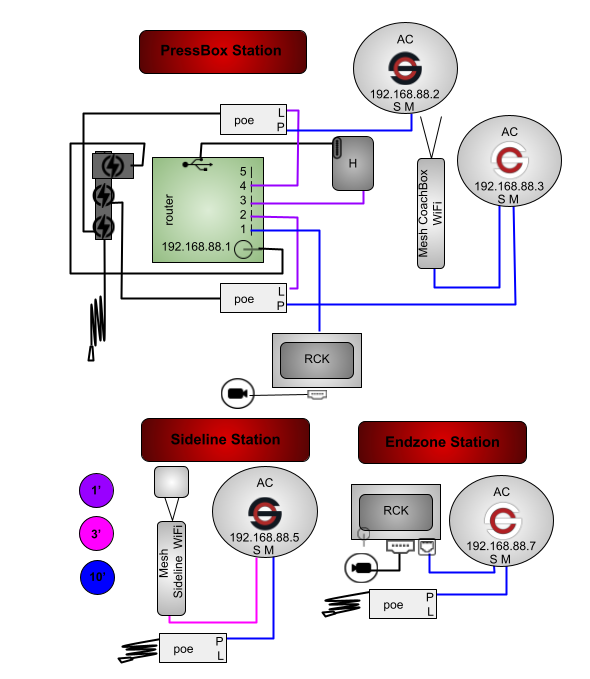
* The above configuration is used for games when the filmers and press box coaches are on the SAME side of the field.
Diamond Coach Replay
6AC(RB,RW,BW)1M1MDPHGR-4P2R-3WT-CR
(with CoachBox bridge)
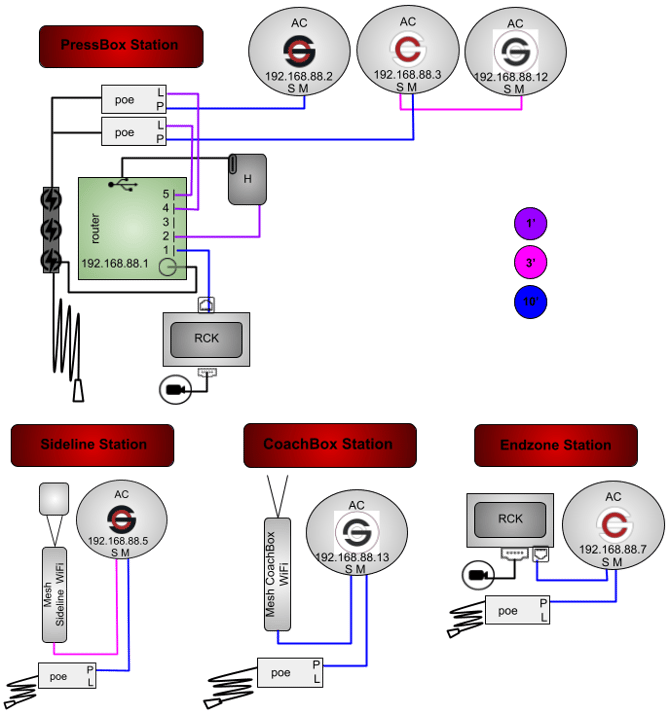
* The above configuration is used for games when the filmers and press box coaches are on OPPOSITE sides of the field.
HOST BOX (brains)
PRESSBOX STATION: 1 host box, 1 RCK, 3 bridge antennas, 1 mesh access point
You will need 2 power outlets: one to power the host box and one to power the RCK. The 3 round antennas will mount to one of your stands and point at the field as indicated by their labels. The host box and RCK will stay with the filmer.
Scenario 1 (without bridge): Filmers and pressbox coaches are in the same building -
Use a long ethernet cable to run from the LAN2 port on your red/white round bridge antenna to the coach room for the coachbox-wifi "bunny"
Scenario 2 (with bridge): Filmers and pressbox coaches are on opposite sides of the field in different buildings -
Connect the main port on the black/white round antenna to the LAN2 port on the red/white round antenna and move the coachbox-wifi "bunny" to the CoachBox station
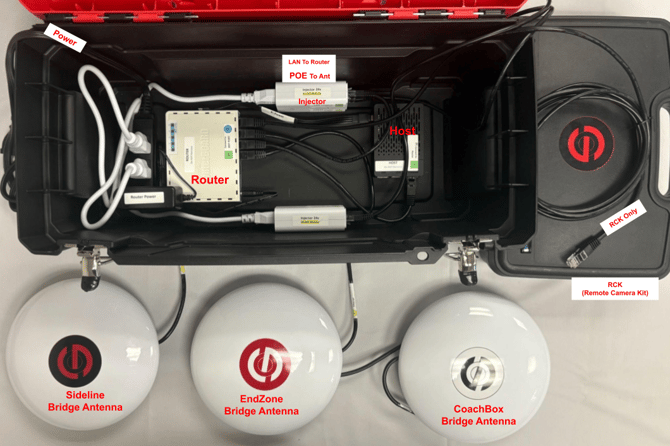
- 1 green gigabit router
- 1 Pi host server
- 1 ethernet cable for your RCK
- 2 ethernet cables connected to LAN port on each injector
- 1 AC red/black stickered antenna to bridge to the Sideline Station, connected from the POE24 port of injector to the Main port of antenna
- 1 AC red/white stickered antenna to bridge to the EndZone Station, connected from the POE24 port of injector to the Main port of antenna
- 1 Mesh CoachBox-WiFi antenna to connect to devices in the press box
(this bunny will move to the coachbox station when coaches are across the field) - This is connected to the LAN2 port of the red/white round antenna when not using the CoachBox station
- SC-CoachBox-XXXXX for the home coach booth
- 1 AC black/white stickered antenna to bridge to the CoachBox, connected from the LAN2 port of the red/white round antenna to the Main port of the black/white antenna (only use this antenna when coaches are across the field)
- 1 Mesh CoachBox-WiFi antenna to connect to devices in the press box
STATION BOX (field equipment)
SIDELINE STATION: 1 bridge antenna, 1 mesh-UMAD access point, 1 powertube
You will need 1 power outlet for the sideline power supply. Mount the 2 antennas to one of the stands and place it at the 35 yard line.
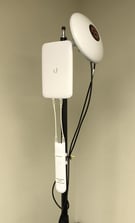 The round bridge antenna will point at the matching press box antenna as indicated by the label. Be sure the antenna has a clear and straight line of sight with no obstructions.
The skinny mesh antenna requires the directional booster and should be pointed down the sideline towards the ios devices. These provide the SC-Sideline-WiFi access for the sideline iPads and will ensure fast download speeds.
Any iPad can connect to the SkyCoach network via the provided access point ("WiFi") or connect directly via an ethernet adapter and switch port. Please contact SkyCoach support if you would like to discuss hardwiring iPad access on the sideline.
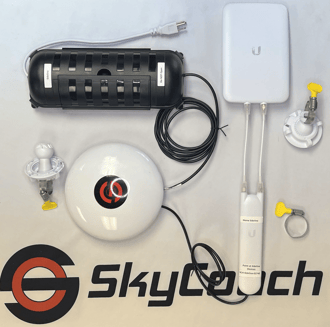
- 1 powertube
- 1 AC red/black stickered antenna to bridge to pressbox and power the WiFi antenna, connected from the POE24 port of the powertube injector to the Main port of antenna
- 1 Mesh-UMAD Sideline-WiFi antenna that connects to devices on the sideline
- This is connected to the LAN2 port of the red/black round antenna
- SC-Sideline-XXXXX for sideline iPads
- 1 AC red/black stickered antenna to bridge to pressbox and power the WiFi antenna, connected from the POE24 port of the powertube injector to the Main port of antenna
END ZONE STATION: 1 bridge antenna, 1 RCK, 1 powertube
You will need 2 power outlets: one for the powertube and one to power the RCK, both pictured below. The antenna will point at the matching press box antenna as indicated by the label.
You can mount the red/white round bridge antenna to the leg of your end zone tripod or camera stand. Be creative or even switch the ethernet cable for a longer one to get the best position for your antenna.
*Be sure the antenna has a clear and straight line of sight with no obstructions and avoiding the field goal post.
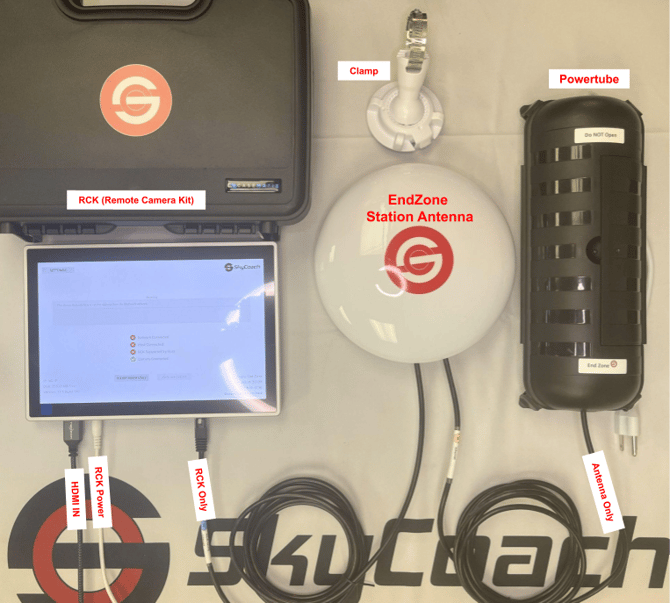
- 1 powertube
- 1 AC red/white stickered antenna in the end zone to bridge to the pressbox, connected from the POE24 port of the powertube injector to the Main port of the antenna
- 1 ethernet cable for your RCK connected to LAN2 port of the red/white round antenna
- 1 AC red/white stickered antenna in the end zone to bridge to the pressbox, connected from the POE24 port of the powertube injector to the Main port of the antenna
COACHBOX STATION: 1 bridge antenna, 1 mesh access point, 1 powertube
You will only use the coachbox station when the filmers and pressbox coaches are on opposite sides of the field, scenario 2 (with bridge). The filmer will keep the host box and RCK while the coaches will use the coachbox station. This scenario will use the coachbox bridge.
- IN THE HOST BOX: Remove the ethernet from the SC-CoachBox-WiFi "bunny ear" antenna and connect it to the main port on the black/white round bridge antenna labeled "PressBox, Point at CoachBox". See the host box picture in the host box section of this page
- IN THE COACHBOX STATION: Attach the SC-CoachBox-WiFi bunny to the secondary LAN2 port on the black/white round station antenna labeled "CoachBox, Point at PressBox". See the picture below
* The "skinny rabbit ear" mesh antenna should be in the room with the coaches. This provides the SC-CoachBox-WiFi access for the coachbox iPads and will ensure fast download speeds.
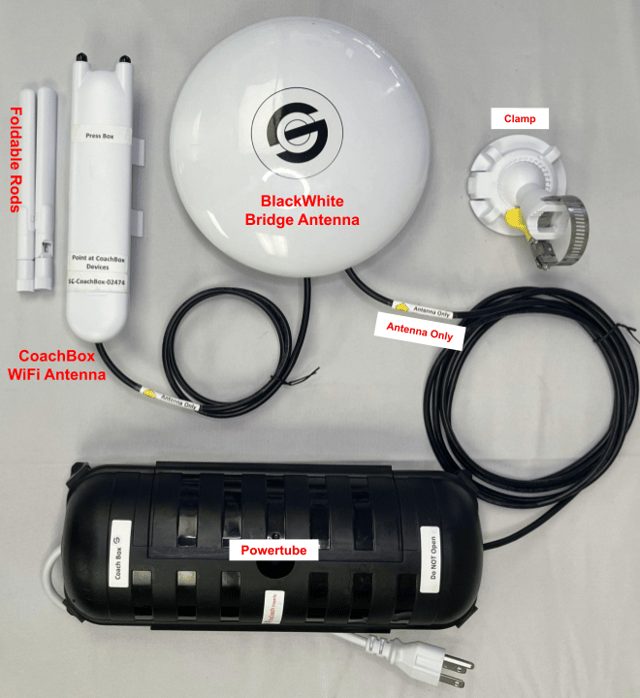
- 1 powertube
- 1 AC black/white stickered antenna in the coach box to bridge to the pressbox, connected from the POE24 port of the powertube injector to the Main port of antenna
- 1 Mesh CoachBox-WiFi antenna to connect to devices in the press box
- This is connected to the LAN2 port of the black/white round antenna
- SC-CoachBox-XXXXX
- this WiFi bunny will move to the press box station when coaches are on the same side of field as the filmers
- 1 AC black/white stickered antenna in the coach box to bridge to the pressbox, connected from the POE24 port of the powertube injector to the Main port of antenna
POWER SUPPLY for this model:
Powertube
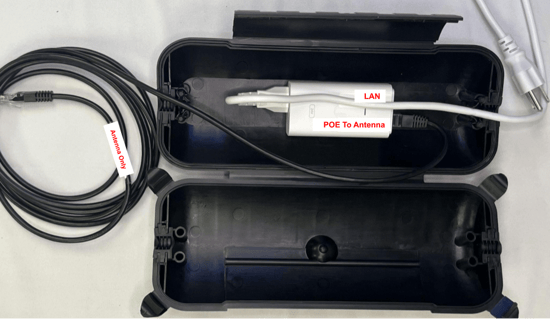
- 1 white POE injector
- The red POE24 port on the injector uses a 10' ethernet cable to connect to the main port on the antenna
- The LAN port on the injector can be left empty OR connect a device (like RCK or iPad) to the network
- The cables crossover to exit
You have completed Part A (Setting Up Network)
Proceed to Part B (Setup RCK)
Proceed to Part C (Setup iPad)